Tutorial 6 of 8
Save, share and play together
Intermediate 5 min
Keep games in this browser, save files, send game links, export score cards and hole pictures, and share courses in a workspace or on Google Drive.
Puttopia saves everything in this browser while you play. Nothing goes to a server unless you share it. To play with friends on their own devices, see Play online with friends.
Files and recent games
The Game menu holds everything about the whole game:
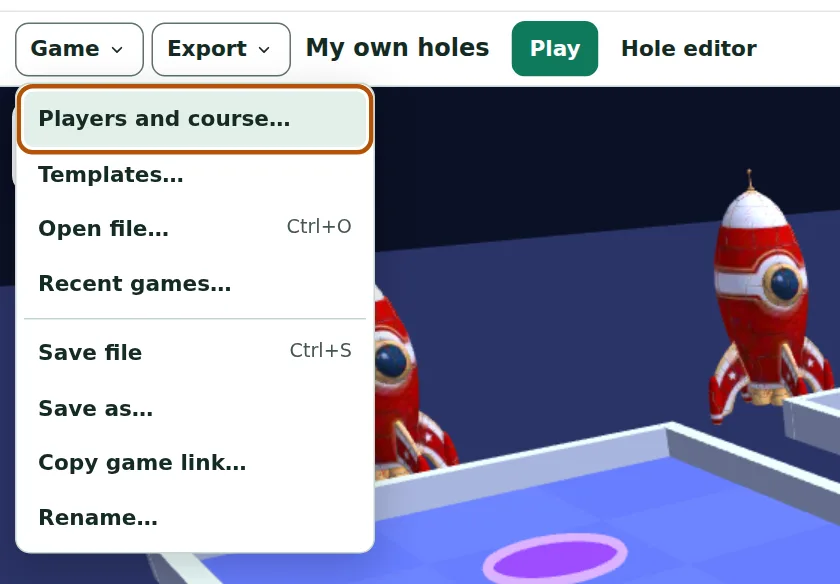
- Save file (Ctrl + S) saves a
.puttopia.jsonfile with the players, settings, your own holes, scores, best rounds and achievements. - Open file… (Ctrl + O) opens such a file again — or a single hole saved from the editor.
- Recent games… lists the games saved in this browser; the bin button removes one.
- Rename… changes the name of the game.
Game links
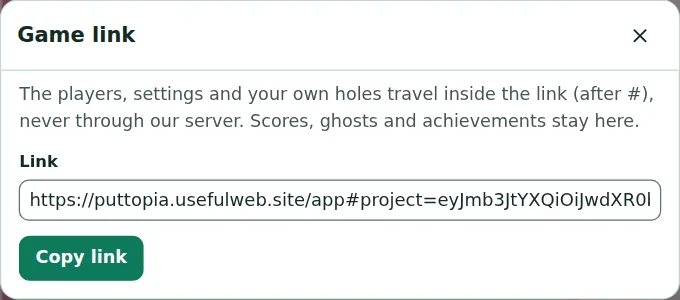
Copy game link… makes a link that contains the players, the settings and your own holes. Send it to a friend and they get the same course. The data travels inside the link after the # sign, never through our server; scores, ghosts and achievements stay with you.
Export
The Export menu saves the score card (CSV), the hole top view (SVG) — with the path of the last putt when there is one — and the hole as JSON for the editor or the hole checker. When other usefulweb apps are open in this browser, you can also hand the score card or the hole picture straight to them.
Workspaces and Google Drive
Sign in at the top of the page with a passkey or Google, and the Game menu gets more items:
- Save to workspace… puts the game into a Teamspaces workspace. Members can play and edit it, viewers can only look; changes arrive live on everybody's screen. Perfect for a club that shares its own course.
- Comments… adds a comment to the game or to the hole you are editing.
- The Google Drive items save the game file in a Puttopia folder of your own Drive and open it from there.
Opening another game, a template or a link stops syncing with the workspace first, so the shared game is never overwritten by accident.
Ready to try it?