Tutorial 2 of 8
Aiming, power and the caddie
Beginner 6 min
Line up putts with the aiming line, find the right power, ask the caddie for a hint, replay your last putt and let Puttopia describe the hole for you.
Minigolf is a game of direction and speed. Puttopia gives you several helpers — use as many as you like, or switch them off for a real challenge.
Direction and the aiming line
The aim is shown in degrees: 270° points straight up the course, 0° to the right, 180° to the left. With Line up to the first bounce (the default aiming help) a dotted line shows where the ball will roll until it hits something, with the current power.
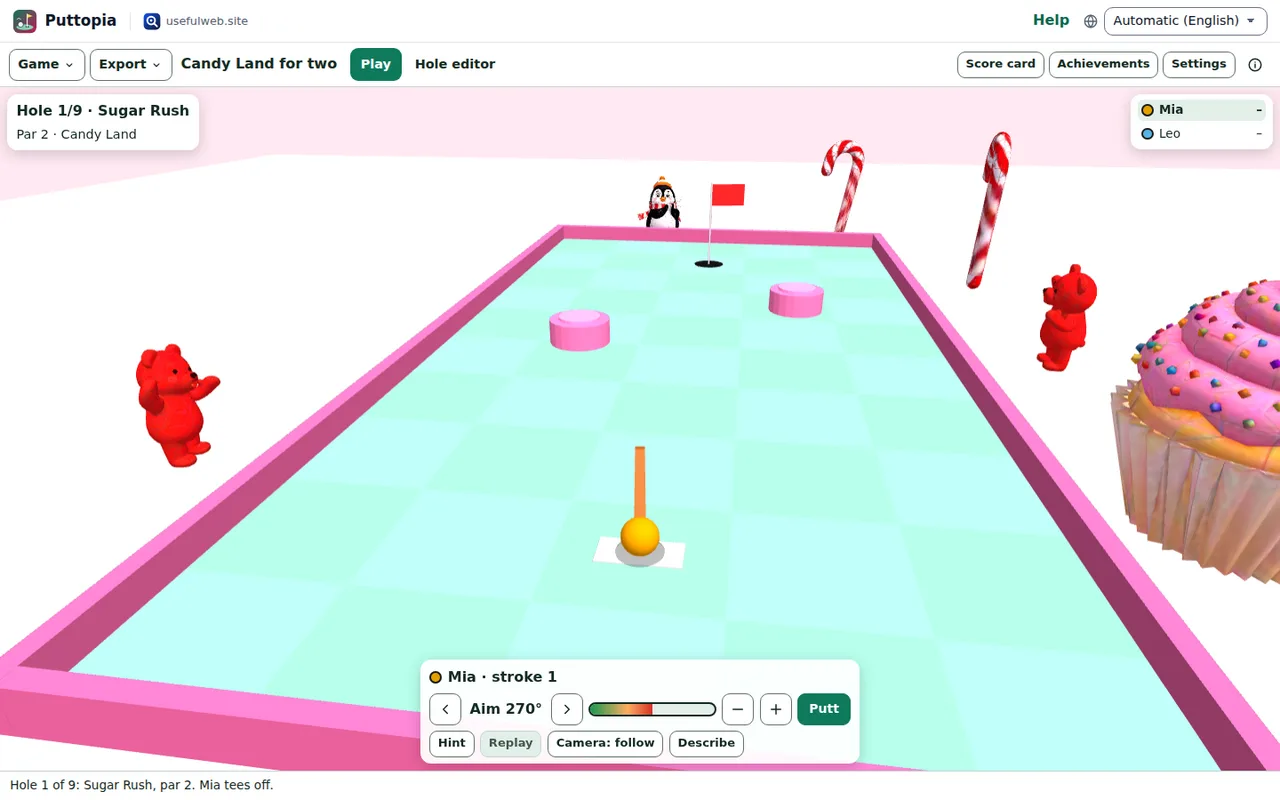
Shift + Left/Right turns the aim in half-degree steps for fine corrections. Settings → Aiming help switches to the arrow only or to no help at all.
The right power
Too soft and the ball stops short; too hard and it lips out — balls that cross the cup too fast jump over it. A putt across a whole Candy Land hole needs about 70–80 % power; a short putt near the cup only 15–25 %. Sand slows the ball a lot, ice hardly at all.
Ask the caddie
Hint (or H) asks the caddie. It tries hundreds of putts with the real physics and sets the aim and power for you. The status line says what it found:

On holes with a windmill, moving blocks or rafts the caddie also times the swing: putt within a second and Puttopia waits for exactly the right moment.
Replay and ghost
Replay (or R) plays your last putt again, at full speed, with the same bounces. If you have finished a course before, the faint white ghost ball shows how the best round so far played each hole — race it.
Let Puttopia describe the hole
Describe (or D) reads out the hole: distance and direction to the cup, the length of the way round, and what lies ahead on your aiming line.

Screen readers hear the same text, plus a short announcement whenever the aim or power changes and after every putt (how far from the cup the ball stopped, bounces, lip-outs and splashes).
All keys at a glance
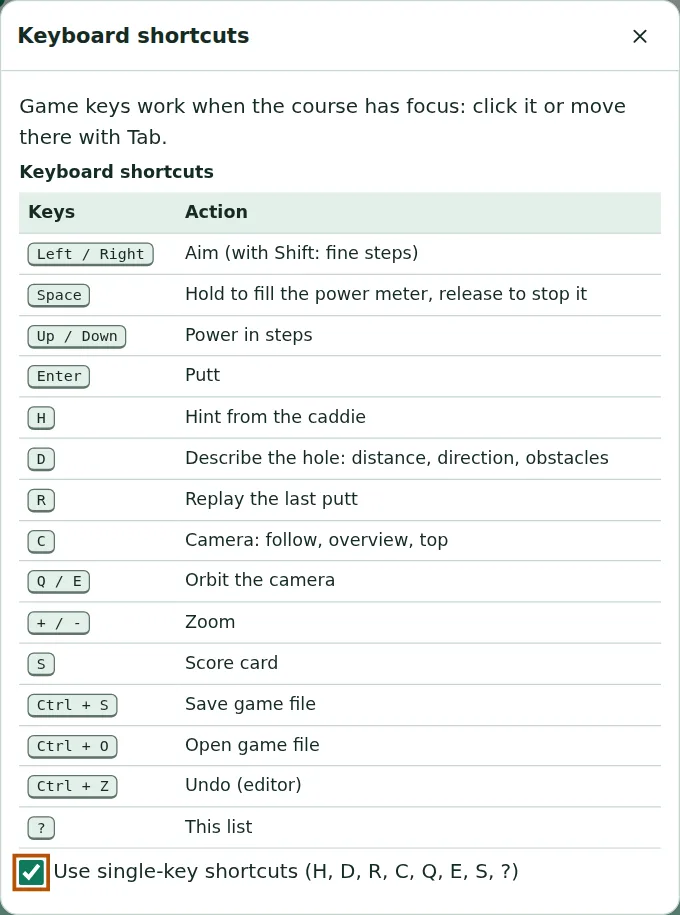
? opens the list of keyboard shortcuts. Single-key shortcuts (H, D, R, C, Q, E, S) can be switched off there if they get in the way of your assistive technology.
Ready to try it?